Showing posts with label Encryptomatic. Show all posts

Tuesday, April 4, 2023

What is the OpenPGP Protocol?

The OpenPGP protocol is a widely used standard for secure communication, specifically for email encryption and signing. It is an open-source implementation of the Pretty Good Privacy (PGP) standard, and it provides end-to-end encryption for emails and files. OpenPGP utilizes public-key cryptography to ensure that messages are only read by the intended recipient.

OpenPGP makes use of several encryption algorithms to secure the data being transmitted. The most widely used encryption algorithm is the RSA (Rivest–Shamir–Adleman) algorithm. RSA is a public-key encryption algorithm that is widely used for secure data transmission. It is based on the mathematical problem of factoring large numbers, and it works by generating a public and private key pair. The public key is used for encrypting messages, while the private key is used for decrypting messages.

Another encryption algorithm used by OpenPGP is AES (Advanced Encryption Standard). AES is a symmetric-key encryption algorithm that is used to protect sensitive data. It works by using a key to encrypt and decrypt data. The key used for encryption is the same as the one used for decryption, making it a symmetric-key algorithm.

OpenPGP also utilizes SHA (Secure Hash Algorithm) for generating message digests. SHA is a cryptographic hash function that generates a fixed-size output based on the input data. It is used to ensure the integrity of the data being transmitted, and it provides a mechanism for detecting any unauthorized modifications to the data.

Overall, the OpenPGP protocol and its encryption algorithms provide a high level of security for email and file transmission. The use of public-key cryptography ensures that messages are only read by the intended recipient, while the encryption algorithms ensure that the data being transmitted is protected from unauthorized access.

For a useful implementation of OpenPGP for Windows desktop encryption and add-in for Outlook email encryption, look into Encryptomatic OpenPGP. It's free for personal and non-profit use, and affordable and supported for business use.  Learn more at the Encryptomatic OpenPGP website.


Related: How to create an OpenPGP key pair?

Thursday, December 15, 2022

How to Send an OpenPGP Encrypted Email from Microsoft Outlook

Software box: Encryptomatic OpenPGP
Encryptomatic OpenPGP add-in brings strong public key encryption to the Microsoft Outlook menu system. If you have need to send OpenPGP messages from Outlook, give us a try.  You can download the latest version from our website.

Encryptomatic OpenPGP works with Outlook 365/2021/2019/2016/2013/2010.

After installing Encryptomatic OpenPGP, start Outlook.  You will be prompted to create a key pair.  If you're unsure exactly which settings to use, use our defaults.   A private key and a public key will be created.

You can share your public key with the world. Others will use your public key to encrypt their messages to you.  Through the magic of math and prime numbers, only your private key will be able to decipher a message that has been encrypted with your public key. That's why it is so important to keep your private key private! Do not share your private key with anyone, or they will able to open all messages sent to you and can fake your identity to others.

Public key = share with the world

Private key = keep it secret!

To send an encrypted message, you will need to have the recipient's public key.  And they will need to have your public key to send to you.  An easy way to get started is to just send your public key to anyone you want to communicate with through OpenPGP. 

If someone sends you their public key, you can copy it and import it into the Encryptomatic OpenPGP keyring from your clipboard. Go to Key Management > Key Import > ...From Clipboard.

When you have a recipient's private key in your keyring, create a new email message.  
Click the "Encrypt" button in the Outlook toolbar, and then send the message.

Screen shot of openpgp encrypt button in Outlook toolbar.
Encrypt button in MS Outlook


Your email will be encrypted using the recipient's public key.  Only the recipient will be able to decipher the message.  

Encryptomatic OpenPGP is free for personal use, and for those who are working at a non-profit organization to do good work for the world.  Its affordable for everyone else!  Give it a try, and let us know how we can improve it.


Tuesday, January 21, 2020

Setting Domain and Address Rules for OpenPGP Email Signing and Encryption.

Encryptomatic OpenPGP add-in works with Microsoft Outlook to encrypt and/or sign your email messages.  Encrypting Outlook emails protects them from being read by anyone but the recipient.  Signing an email protects your message from being tampered with.

Screen image showing Encryptomatic OpenPGP buttons, "Encrypt" and "Sign" in a new Outlook email.
Buttons in Outlook message to Encrypt or Sign an email message.
When you open a new email messages, Encryptomatic OpenPGP will be part of the Outlook menu.  To sign an email message, click the "Sign" button before sending the message.   To encrypt the email message entirely, click the "Encrypt" button.

Yes, it is possible to both encrypt and sign an Outlook email message. As you would expect, just select both buttons, and then send your email.

Automatically Encrypting or Signing Outlook Emails

You can establish default rules for Encryptomatic OpenPGP for encrypting and signing emails. The rules can be based either on a domain, or a specific email.  Setting up a rule takes just a moment.

First, click the Encryptomatic OpenPGP  "Options" button, and go to the "Rules" tab.

Rules tab in Encryptomatic OpenPGP for encrypting and signing emails.
Set rules for encrypting or signing Outlook emails
To add a default rule to encrypt and sign all emails we send to bob@encryptomatic.com, type the email address in the Rules Setting, check the boxes for Encrypt and Sign, then click "Add New Rule".

The rule has now been added to the list of rules.  Save and Close to exit.

Now when ever you send to bob@encryptomatic.com,  the message will be signed and encrypted.

Please note that Encryptomatic OpenPGP's rules are a backup, helping if should forget to select the Encrypt and Sign buttons.  Its best to develop the habit of remembering to encrypt and sign messages.

If you have any questions, please post them below!


Friday, January 10, 2020

Managing Public Keys in Encryptomatic OpenPGP for Outlook

Before any OpenPgp software can encrypt an email message, it needs to have access the recipient's public key.  

A public key allows anyone to encrypt a message to the recipient, but only the recipient can decrypt the message. A public key can be shared a number of different ways.

Sometimes the public key is attached as a file to an email message. 
Other times, the key may be uploaded to a public server that you can search.
If Encryptomatic OpenPGP can't find the recipient's public key in its local key store, it will ask your permission to search public key servers. 

Public key servers have worked fairly well for decades, but lately there has been problems with people spamming or "poisoning" the key server network to make it hard to discern the correct public key for certain people.  

Because anyone can upload a public key for any email address, and because some keys never expire (unexpired keys persist forever in the SKS key servers), this has started to become a problem.  Nevertheless, searching key servers is a good way to discover keys for many people, even while some high profile people are struggling with this spam.

How we help you manage public OpenPgp keys.


Given the present realities and limitations of the public key server network, we at Encryptomatic LLC advocate setting your keys to expire after a year or two. The expiration date can always be extended later, but try to avoid the problem of key accumulation that might confuse others as to which public key is the correct one.


Encryptomatic OpenPGP provides various capabilities around key management to help you.  From Settings > Key Management, you can import public keys several ways: from a text file,  from your Windows clipboard, or from the public key servers.

Image showing location of Key Management button in Microsoft Outlook.
Key Management Button in Microsoft Oulook

You can also share your public key by exporting it to a file, your clipboard, by attaching it directly to an email, or by uploading it to a public key server. You can work to keep your keys up to date by refreshing them from the public key server network.


Protecting your Private Key


While you can share your public key with anyone, make sure that protect your private key with a strong password.  Anyone who has your private key will be able to access any emails sent to you that were encrypted with your public key.  Keep the private key secure.


Thursday, January 9, 2020

Creating an OpenPGP Key Pair for Outlook Email Encryption


Outlook openpgp email encryption illustration showing encrypted email message.

Before sending or receiving an OpenPGP encrypted email in Microsoft Outlook, you must create a key pair consisting of a private key and a public key.

Your private key must be kept private. Anyone who can access your private key will be able to view encrypted email messages that have been sent to you.

Your public key can be shared with anyone.  Post it on your website, if you like. Only your private key will be able to open a message that has been encrypted with your public key.  It sounds like magic, but its just math.

If you lose your private key, you will lose your ability to open a message that was obscured with your public key. Likewise, anyone who obtains your private key can send you an encrypted email message. 

Encryptomatic OpenPGP can import most existing key pairs. If you don't have a key pair or you want to make a new pair,  it can help you with that, too.

Make an OpenPGP Key Pair

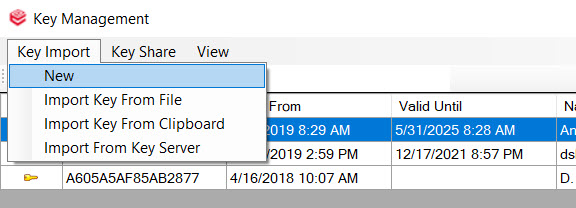
When you first run Outlook after installing Encryptomatic OpenPGP,  you will be prompted to import or create your OpenPGP keys.  You can also initiate key pair generation by going to:  Key Options > Key Import >New
Screen image showing the location of Key Management, Key Import, New.
Creating a new OpenPGP key pair

Select "New" to proceed to the "Generate New Key" screen.  Here is where you can choose to create a key pair for email encryption. You can one or more email addresses to include in your key by checking the box next to the email address.  The email address must be setup in Microsoft Outlook to appear in the list.

Screen image showing the "Generate new key" page and email address selection.
Generate a key OpenPGP key pair in Encryptomatic OpenPGP
Your Passphrase protects your private key.  Before Encryptomatic OpenPGP or any other software app can access your private key to decrypt a message or file, you must enter this password.   Encryptomatic OpenPGP lets you determine the amount of time that it will have access to this password.

You may only want it to have access for a moment, preferring to enter the password each time you are sending an email.  Or, perhaps you are sending a lot of emails over a short period of time and want Encryptomatic OpenPgp to retain access to your private key for an hour or so.  Its up to you. Just make sure that your passphrase is very strong, and known only to you.

Setting Key Expiration Date and Key Strength


Your key can automatically expire after a specific date.  We urge you to consider setting an expiration date, especially if you plan to share your pubic key with the public key server network. If there is no expiration date, your key may persist forever.  You can always extend the expiration date later.

You can also select the encryption algorithm that will protect your private key. The stronger the algorithm, the longer it will take to generate your key pair.  If you are unsure about this, just use the default settings in Encryptomatic OpenPGP.

Click the "Generate" button to start the process of making your new key pair.

Gear logo and message, "Generating Keys. This can take some time. Please stand by."


When you see the "Generating Keys" message, feel free to step away for a few minutes to get yourself a cup of coffee. When you return, you should see this message:

Screen shot of notification message "Secret key ring successfully generated."  OK

Your key will now appear in the Key Management window. To share your key, click on the "Key Share" menu.

Screen shot of Key Management screen.  "Upload to key server" is highlighted.

This is where you can perform many functions for managing your key.  There are options to export your public and or private key to a file. You can also share your pubilc key with a key server so others may find your key more easily.  You can change your expiration date or passphrase,  and even revoke your key.  Revoking a key tells key servers to indicate that the key is no longer valid and should not be used.

We hope this has been helpful to you. If you have any questions or comments, please post them below, or contact us directly.


Wednesday, January 8, 2020

OpenPGP Email Encryption for Microsoft Outlook


Encryptomatic OpenPGP brings strong OpenPGP email encryption to Microsoft Office Outlook. It integrates tightly with the Microsoft Outlook 365/2019/2016/2013/2010 menu system, making it easy to encrypt and/or sign an email message.

From the Outlook main menu, you can  easily access Key Management features, as well as tweak how Encryptomatic OpenPGP works by adjusting the user options.
Screen shot showing Encryptomatic OpenPGP buttons in Outlook menu bar.
Encryptomatic OpenPGP in the Outlook main menu.

 To send an encrypted message from Outlook, first open a new email message.  Compose your message, then click the "Encrypt" and/or the "Sign" buttons in the message toolbar, and send.

Screen shot of a new email message in MS Outlook with Encrypt and Sign buttons activated.
Activate OpenPGP email encryption from any Outlook new email message.

Sending a message requires having the recipient's public key.  Encryptomatic OpenPGP uses the recipient's public key to encrypt the message. Sometimes you may want to send to someone whose public key has not yet been stored by Encryptomatic OpenPGP. If that happens, Encryptomatic OpenPGP will let you know, and will offer to check well known public key servers to locate the recipients key.  

An screen shot of "Keys not found." Click Yes to search public key servers.
Support is included for public OpenPGP key servers.

When the public key for the recipient is found, the email will be encrypted and sent, and a confirmation message will be displayed.

"Message has been Encrypted and sent successfully.
Encrypted message sent.
The recipient will receive a message in their email inbox that is unintelligible until it has been decrypted. It may look something like this:

An OpenPGP encrypted email message displayed in Microsoft Outlook 365.
Encrypted email message in inbox.
The recipient may use any OpenPGP compatible software and their private key to access the email message.  Usually, the private key is protected with a password.  Typically the way it works in email clients is that the recipient double clicks on the encrypted email message, types a password, and the email message is then displayed.

Screen image of a decrypted email message, showing text and a valid signature message.
Decrypted email message in Microsoft Outlook.
When Encryptomatic OpenPGP decrypts a message, it displays whether a valid signature has been detected.  A valid signature means that the message has not changed since the sender sent it.  "Valid Signature" only appears in messages where the sender has "Signed" the message.  Not all messages are signed. Unsigned messages display an "Invalid Signature" message. Why is this? Because Encryptomatic OpenPGP is unable to determine whether the message has been tampered with unless the message is signed. 

Note that it is possible to sign a message without encrypting it. Its also possible to encrypt a message without signing it.  The best practice is to both sign and encrypt a message.

Download Encryptomatic OpenPGP for Windows and MS Outlook, and start protecting your email messages today.

Download Encryptomatic OpenPGP
Requires Windows 10, MS Outlook 365/2019/2016/2013/2010